How to Make AI Agents Read Messy Spreadsheets
a lot of your business runs on spreadsheets that were built for people to read, not machines. Pasting them into an AI model gives confident but wrong answers. Turning them into clean tables first makes every agent built on them accurate and checkable.
The short answer: don’t hand a raw workbook to a language model. First find the real tables on each sheet, rebuild headers that span several rows, unmerge cells, keep both the formula and its value, and record units and currencies. Then link related tabs, map everything to a clean schema, and validate it with the totals the spreadsheet already contains. Only then let an agent read or reason over it, citing sheet and cell for every value.
PDFs get the attention, but enterprise data often lives in spreadsheets: pricing sheets, budgets, rate cards, inventories, project trackers. This guide covers AI spreadsheet data extraction: how to make workbooks agent-ready, the same discipline as our Agent-Ready Data work on documents.
Why do spreadsheets confuse AI models?
- Many tables on one sheet, separated by blank rows, with titles and notes between them.
- Headers across several rows: “2026” over “Q1 Q2 Q3 Q4” over “Actual Budget”.
- Merged cells that look like one value to a person but leave blanks for a machine.
- Formulas and values: the number shown may come from a formula referencing another tab.
- Units and currencies stated once in a corner, or only in a cell format.
- Meaning in colour: red for overdue, grey for cancelled, with no text saying so.
- Many tabs that depend on each other.
Step 1: Find the real tables
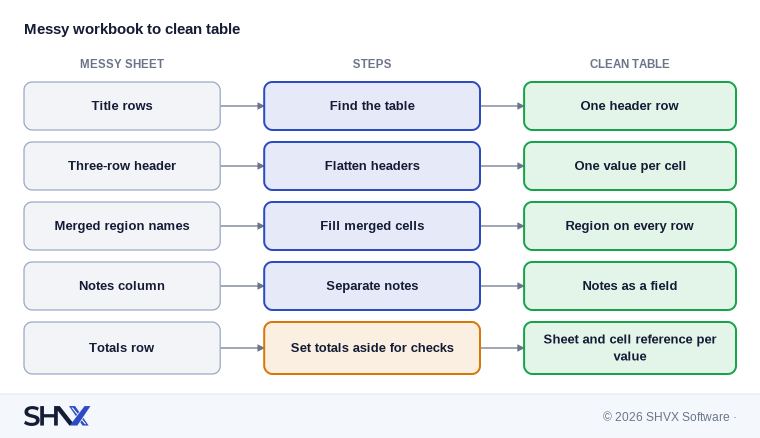
Scan each sheet for blocks of filled cells and classify each block: data table, header block, notes, totals, or chart data. Small models and simple rules both work; combine them. Record each table’s sheet name and cell range, so every value can be cited later as Pricing!C14.
Step 2: Rebuild the headers
Flatten multi-row headers into one column name per column: “2026 · Q1 · Actual”. Fill merged header cells across the columns they cover. Keep the original header rows too, so a reviewer can see what the model saw.
Step 3: Unmerge and fill
Merged cells in the body usually mean “this value applies to every row below until the next one”. Fill them down explicitly. Treat truly empty cells differently from cells that were merged, and from cells that say “n/a” or “-“.
Step 4: Keep formulas and values
Read both the stored value and the formula. Values give you the numbers; formulas tell you which numbers are inputs and which are calculated, and which tabs they come from. Never let a model recalculate totals that the spreadsheet already calculates; use them as checks instead.
Step 5: Capture units, currencies and colour meaning
Read number formats as well as values: a cell formatted as a percentage or in a currency carries meaning. Look for unit notes (“all figures in thousands”) and apply them. Where colour carries meaning, ask the owner what each colour means and turn it into a real column, such as status.
Step 6: Link the tabs
Map how tabs relate: a summary tab that totals regional tabs, a lookup tab of product codes, a rate card used by a pricing tab. Store those links, so an agent answering “what’s our margin on product X in the north?” knows which tabs to combine.
Step 7: Map to a schema and validate
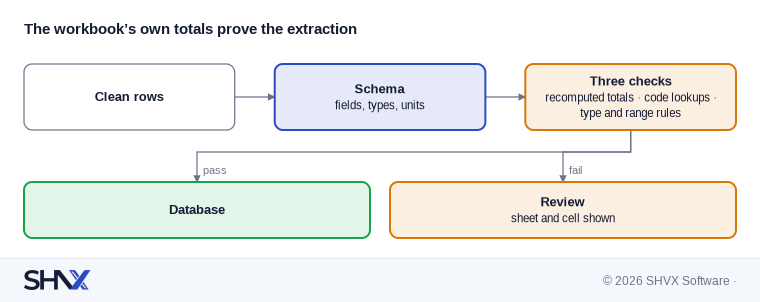
Map each clean table to a fixed schema, as described in how to get reliable structured output from LLMs. Then validate:
- recomputed row and column totals must match the sheet’s own totals;
- codes must exist in the lookup tab;
- values must fit their type and range.
The spreadsheet’s own totals are your free completeness check, much like the running balance in a bank statement.
How should an agent use the clean data?
Load clean tables into a database or warehouse, not back into a prompt. Then an agent can answer questions with a text-to-SQL approach on approved views, citing sheet and cell for every number, instead of reading a whole workbook every time.
Common mistakes
- Pasting a whole workbook into a prompt.
- Ignoring formulas and recomputing totals with the model.
- Treating merged cells as blanks.
- Losing units stated once at the top.
- No sheet-and-cell reference, so nobody can check an answer.
How SHVX can help
Business data trapped in messy workbooks? Send three of your messiest. We’ll show you the clean tables, the checks they pass and where they fail.
Learn more about Agent-Ready Data.
FAQ
Can AI read Excel files accurately?
For simple tables, often. For real-world workbooks with merged cells, multi-row headers and many tabs, accuracy needs a structuring step first.
How do I extract data from a messy spreadsheet with AI?
Find each table, flatten headers, unmerge cells, keep formulas and values, capture units, then map to a schema and validate against the sheet’s own totals.
Should I convert spreadsheets to CSV before using AI?
Not blindly. CSV drops formulas, formats and other tabs, which often carry the meaning you need.
How do AI agents answer questions about spreadsheet data?
Best by querying clean tables in a database with approved views, and citing the sheet and cell behind every number.